Customizing Quarto Websites

Make your website stand out using &


Sam Shanny-Csik |
Lecturer & Data Science Programs Manager

Master of Environmental Data Science |
Bren School of Environmental Science & Management


Prerequisites


You should already have a Quarto website (or at least the bones of one) that:

  • is deployed using GitHub Pages and
  • contains some content (e.g. text, headings, etc.) for us to customize


Run quarto preview in the Terminal to view changes in near real time – each time you edit and save your work, the preview will update in your browser.

TL;DR – our approach today


When we render a Quarto site, it converts markdown to HTML and applies a pre-built CSS stylesheet (Bootswatch Cosmo).


We’ll customize our websites in this order:

  • First — add a pre-built template to index.qmd and adjust website configurations by editing _quarto.yml

  • Next — create a styles.scss file, link to it in _quarto.yml, and define Sass variables

  • Finally — make fine-tuned adjustments by writing CSS rules in styles.scss

First, add a pre-built template to index.qmd and adjust website configurations by editing _quarto.yml

Arrange landing page content using a pre-built template


Quarto has 5 pre-built “about page” templates that work especially well for personal websites. Apply one in your index.qmd YAML:

index.qmd
---
image: file/path/to/headshot.jpeg
toc: false
about:
  template: jolla
  image-shape: round
  image-width: 17em
  links:
    - text: LinkedIn
      href: https://www.linkedin.com/in/yourname/
      target: _blank
    - text: GitHub
      href: https://github.com/yourusername
      target: _blank
    - text: Email
      href: mailto:you@email.com
---

Add / arrange pages in your navbar


Configure website navigation under website > navbar in _quarto.yml:

_quarto.yml
project:
  type: website
  output-dir: docs

website:
  title: "Your Name"
  navbar:
    right:
      - href: index.qmd
        text: Home
      - about.qmd
      - href: resources.qmd
        text: Resources
      - href: file/path/to/myCV.pdf
        text: CV
        target: _blank
      - icon: github
        href: https://github.com/yourusername
        target: _blank
  page-footer:
    background: light
    left: Copyright 2024, Your Name
    right: Built with [Quarto](https://quarto.org/){target=_blank}

format:
  html:
    theme: cosmo
    css: styles.css
    toc: true
    page-layout: full

Add a page footer


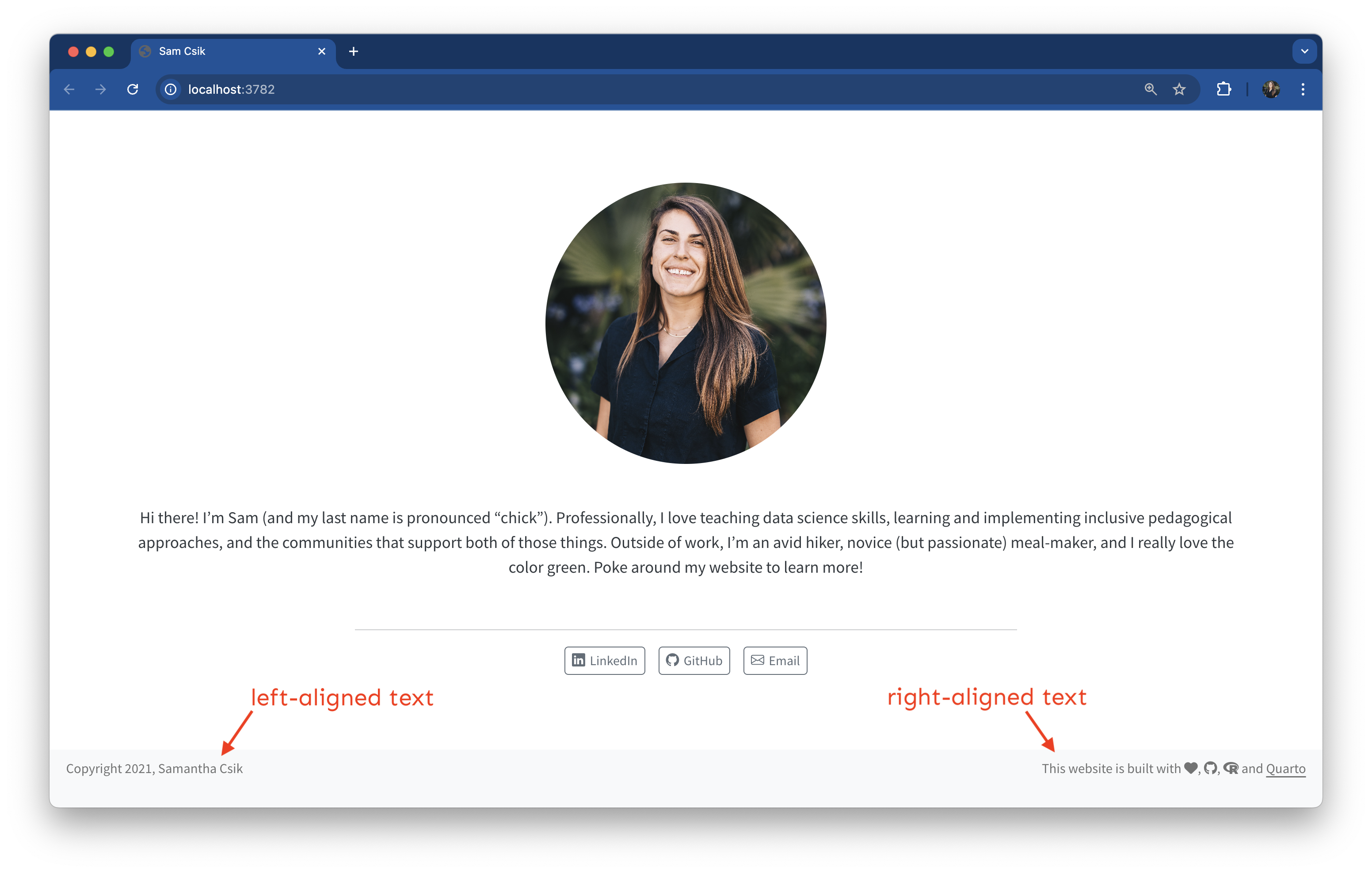
Footers appear on each page (you may have to scroll to the bottom to see it appear). You can include a mix of text, icons, logos, hyperlinks, etc.

Add a page footer


Make edits to a website’s footer under the website > page-footer option:

project:
  type: website
  output-dir: docs

website:
  title: "Sam Shanny-Csik"
  navbar:
    right:
      - href: index.qmd
        text: Home
      - about.qmd
      - href: resources.qmd
        text: Resources
      - href: cv/myCV.pdf
        text: CV
        target: _blank 
      - icon: github 
        href: https://github.com/yourUserName
        target: _blank
  page-footer:
    background: light # or `dark` or omit this option altogether (footer color will match page body color)
    left: Copyright 2021, Samantha Shanny-Csik
    right: This website is built with {{< fa heart title="a heart" >}}, [{{< fa brands github title="GitHub octocat logo" >}}](https://github.com/samanthacsik/samanthacsik.github.io){target=_blank}, [{{< fa brands r-project title="R Project" >}}](https://www.r-project.org/about.html){target=_blank} and [Quarto](https://quarto.org/){target=_blank}

format:
  html:
    theme: cosmo
    css: styles.css
    toc: true
    page-layout: full

Install the Quarto fontawesome extension to use icons outside of YAML


Run the following in your Terminal (from your project’s root directory). Be sure to push the resulting _extensions/ folder to GitHub:

Terminal
quarto add quarto-ext/fontawesome


Then use icons anywhere in your .qmd files with the shortcode:

{{< fa icon-name title="descriptive text for accessibility" >}}
{{< fa brands github title="The GitHub octocat logo" >}}

Next, create a styles.scss file, link to it in _quarto.yml, and define Sass variables.

What is Sass?


Syntactically Awesome Stylesheets


  • A CSS extension (adds features like variables)
  • .scss is Sass’s modern file format — a superset of CSS, meaning all valid CSS is also valid SCSS
  • A CSS preprocessor (converts .scss to CSS — browsers can’t read SCSS directly, but Quarto handles this conversion automatically)

Sass helps to reduce repetition


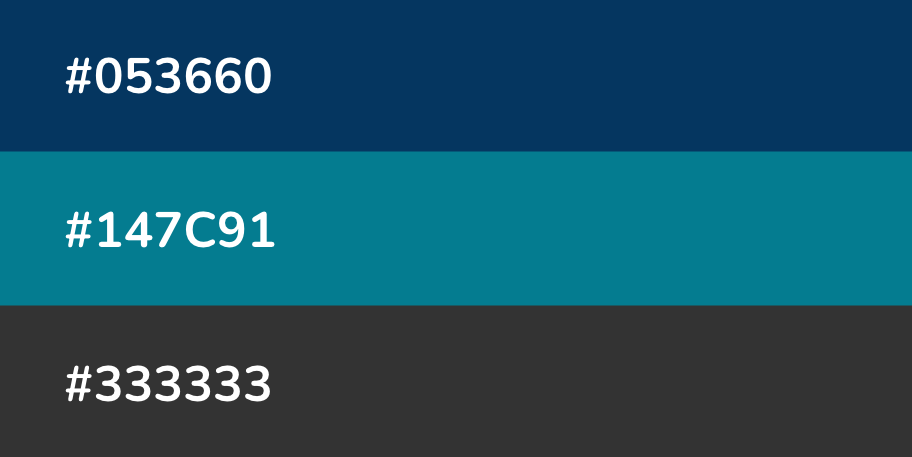
Sass extends existing CSS features in a number of exciting ways, but importantly reduces repetition. For example, let’s say you’re building a website / web page that uses three colors:


You might imagine how often you’ll need to type those HEX codes out as you developing your stylesheet…it can get annoying rather quickly.

Define Sass variables to reduce repetition


Sass allows us to define variables (in the form $var-name: value;) for our colors, which we can reference instead of writing out their HEX codes each time. This makes your stylesheet more readable and easier to update (e.g. only need to update HEX codes in one spot, not multiple!).

Example stylesheet (.scss)
// define Sass vars 
$darkblue: #053660;
$teal: #147C91;
$darkgray: #333333;

// use vars in CSS rules (we'll learn more about how to write CSS soon!) 
h1 {
  color: $darkblue;
}

.button-styling {
  background: $teal;
  color: $darkblue; 
  border-color: $darkgray;
}

Quarto automatically compiles Sass


Web browsers can interpret CSS ( .css) but not Sass ( .scss or .sass).


Typically, you’d need to compile (i.e. convert) Sass to CSS, then link the resulting .css file in your HTML.


Lucky for us, Quarto compiles the contents of a .scss file into CSS without any extra steps – all we need to do is link to a .scss file directly in our website’s _quarto.yml.


Let’s create our website’s .scss stylesheet.

Define color & Quarto Sass variables


4. Define your own color variables, then assign them to Quarto’s pre-defined Sass variables:

styles.scss
/*-- scss:defaults --*/

// Colors (define your palette)
$dark-green: #858E79;
$light-green: #D1D9CE;
$cream: #FDFBF7;
$gray: #64605f;
$purple: #9158A2;
$orange: #ad7237;

// Assign to Quarto Sass variables
$navbar-bg: $cream;        // navbar background
$navbar-fg: $dark-green;   // navbar text/icons
$navbar-hl: $purple;       // navbar hover highlight
$body-bg: $light-green;    // page background
$body-color: $gray;        // page text
$footer-bg: $cream;        // footer background
$link-color: $purple;      // hyperlinks
$code-bg: $cream;          // inline code background
$code-color: $purple;      // inline code text

Import Google Fonts into styles.scss


5a. Browse fonts.google.com, choose 1–2 font families, click Get Font for each, then click Get embed code > choose @import > copy the import statement.

5b. Paste it into styles.scss directly beneath /*-- scss:defaults --*/:

styles.scss
/*-- scss:defaults --*/

// Import Google fonts
@import url('https://fonts.googleapis.com/css2?family=Nunito:ital,wght@0,200..1000;1,200..1000&family=Sen:wght@400..800&display=swap');

// Colors
$dark-green: #858E79;
// ...

5c. Set your main (default) font in _quarto.yml:

_quarto.yml
format:
  html:
    theme: styles.scss
    mainfont: Nunito  # applies to all text elements site-wide
    toc: true
    page-layout: full

Finally, make fine-tuned adjustments by writing CSS rules in styles.scss

HTML & CSS are the building blocks of web pages


HTML is a markup language that structures web content — think of it as the skeleton of a web page (headings, paragraphs, links, images, etc.).

CSS controls how HTML elements look — colors, fonts, layout, spacing. It’s the outfit styling the skeleton.


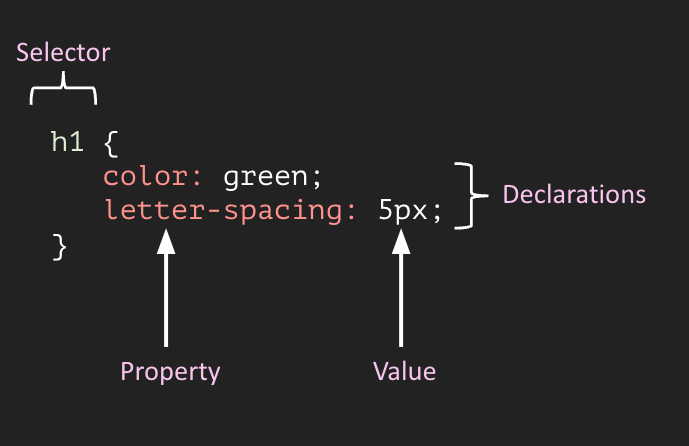
CSS is rule-based: you select elements and declare how they should look.

  • Selector — which HTML element(s) to style (e.g. h1)
  • Property — what to change (e.g. color)
  • Value — how to change it (e.g. green)

How HTML, CSS, and SCSS fit together


HTML defines your content and structure — elements like <h1>, <p>, <div> tell the browser what is on the page.

CSS targets those HTML elements and controls how they look. A CSS stylesheet is linked to an HTML document so the browser knows which styles to apply.

SCSS is a superset of CSS — all valid CSS is also valid SCSS, but SCSS adds extra features like variables ($color: red;) and nesting. Browsers can’t read .scss directly; it must be compiled to .css first.

Quarto handles all of this for you:

  • Your .qmd files are converted to HTML
  • Your styles.scss is compiled to CSS and linked to that HTML
  • The result is a styled webpage in your browser


you write:          browser reads:

index.qmd      →    index.html
styles.scss    →    styles.css
                         ↕
                    styled webpage


This is why we write CSS rules inside styles.scss — Quarto compiles it and wires everything up automatically.

Commonly used HTML tags


Browse a complete list of HTML tags.


Tag What it does
<div></div> defines a division or section in an HTML document
<h1></h1> create a first-level heading (largest)
<h6></h6> create a sixth-level heading (smallest)
<p></p> begin a new paragraph
<strong></strong> bold text
<em></em> italicized text
<img></img> present an image
<a></a> define a hyperlink
<br> add a line break (empty element)
<span></span> an inline container used to markup part of a text or document

The selector types you’ll use most


Element — h1 { color: green; } styles every <h1> on the page:

<h1>My heading</h1>
<p>A paragraph</p>

My heading

A paragraph

Grouping — h1, h2 { color: purple; } applies the same styles to both tags:

<h1>Heading 1</h1>
<h2>Heading 2</h2>
<h3>Heading 3</h3>

Heading 1

Heading 2

Heading 3

Class — .blue-text { color: blue; } only targets elements with class="blue-text":

<p class="blue-text">Styled</p>
<p>Not styled</p>

Styled

Not styled

Add a CSS rules section to styles.scss


Add the /*-- scss:rules --*/ region decorator beneath your Sass variables (required — CSS rules won’t be recognized without it):

styles.scss
/*-- scss:defaults --*/

@import url('https://fonts.googleapis.com/css2?family=Nunito:ital,wght@0,200..1000;1,200..1000&family=Sen:wght@400..800&display=swap');

$dark-green: #858E79;
// ... additional Sass variables ...
$link-color: $purple;

/*-- scss:rules --*/

/* Write your CSS rules below here */

Use Inspect to figure out what to target


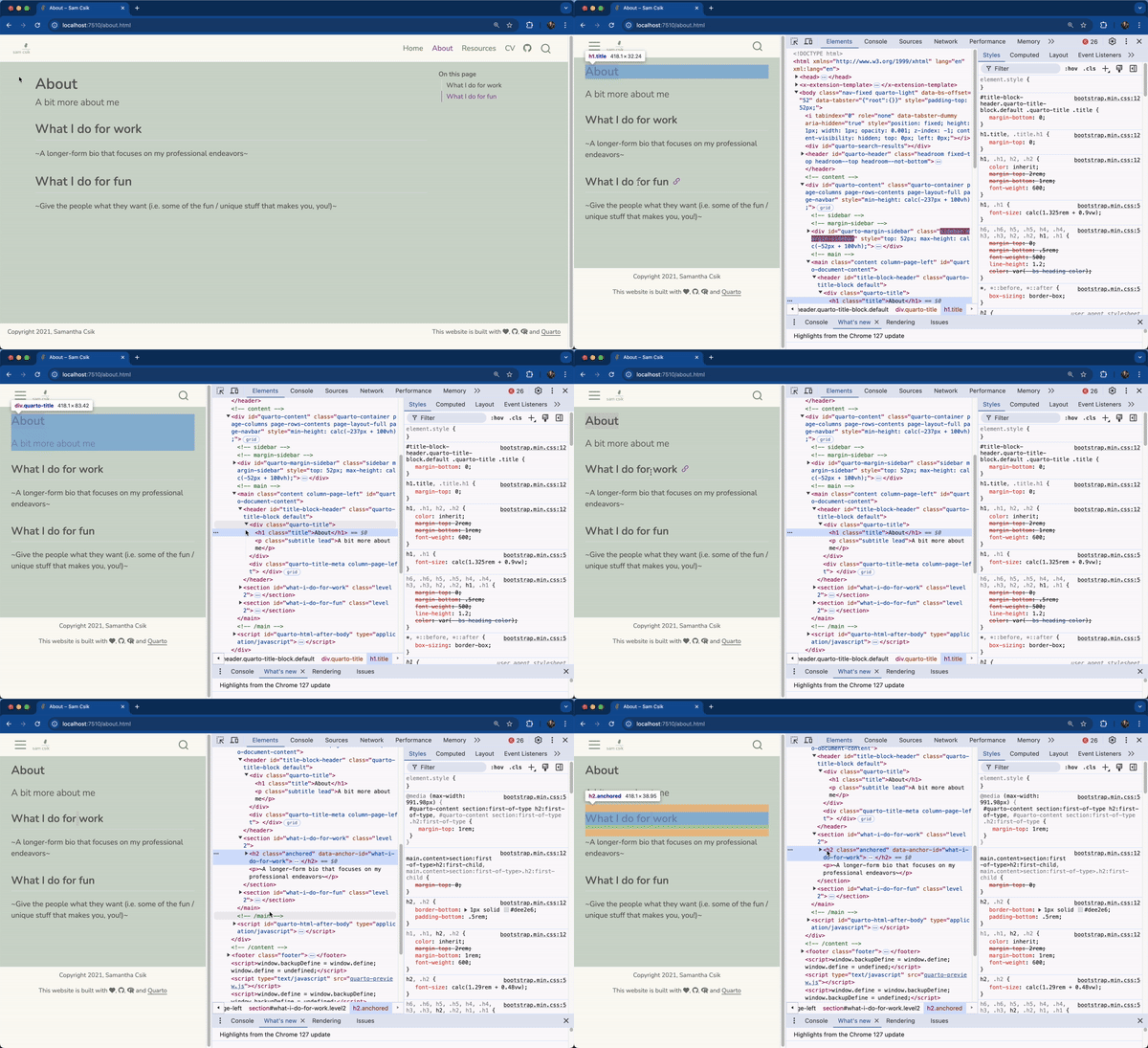
In your website preview, right click on an element of interest (in this case, let’s start with the page title, “About”) and choose Inspect to pull up the underlying HTML & CSS files. You can continue to right click / inspect additional elements (e.g. the section header, “What I do for work”).

Hovering your mouse over different lines of HTML highlights the corresponding element on your webpage.

Write CSS rules in your styles.scss


Example: style all <h1> and <h2> elements site-wide
styles.scss
/*-- scss:rules --*/

h1, h2 {
  letter-spacing: 5px;
  font-weight: 800;
}

Example: modify Quarto’s pre-assigned .title class (applied to page titles):

styles.scss
/*-- scss:rules --*/

h1, h2 {
  letter-spacing: 5px;
  font-weight: 800;
}

.title {
  color: maroon;
}

Write your own class selectors and apply them in .qmd files


Define the class in styles.scss:

styles.scss
.center-text { text-align: center; }
.orange-text { color: $orange; }

Apply using HTML syntax or Quarto’s div/span syntax in .qmd files:

HTML syntax

<!-- Block element (div) -->
<div class="center-text">
  Centered content
</div>

<!-- Inline (span) -->
<p>Some <span class="orange-text">orange</span> text</p>

Quarto syntax

<!-- Block (div) -->
::: {.center-text}
Centered content
:::

<!-- Inline (span) -->
Some [orange]{.orange-text} text

Apply a second font with a Sass variable + CSS rule


To use a second imported font on specific elements (e.g. all headers), create a Sass variable and write a CSS rule:

styles.scss
/*-- scss:defaults --*/

@import url('https://fonts.googleapis.com/css2?family=Nunito:ital,wght@0,200..1000;1,200..1000&family=Sen:wght@400..800&display=swap');

// Fonts
$sen: "Sen", sans-serif;

// Colors + Quarto Sass variables omitted for brevity ...

/*-- scss:rules --*/

h1, h2, h3, h4, h5, h6 {
  font-family: $sen;
}

Get inspired & keep going

Tips for styling your site


It’s a lot of trial and error! Some things that help:

  • Re-render often to confirm your Sass/CSS is working
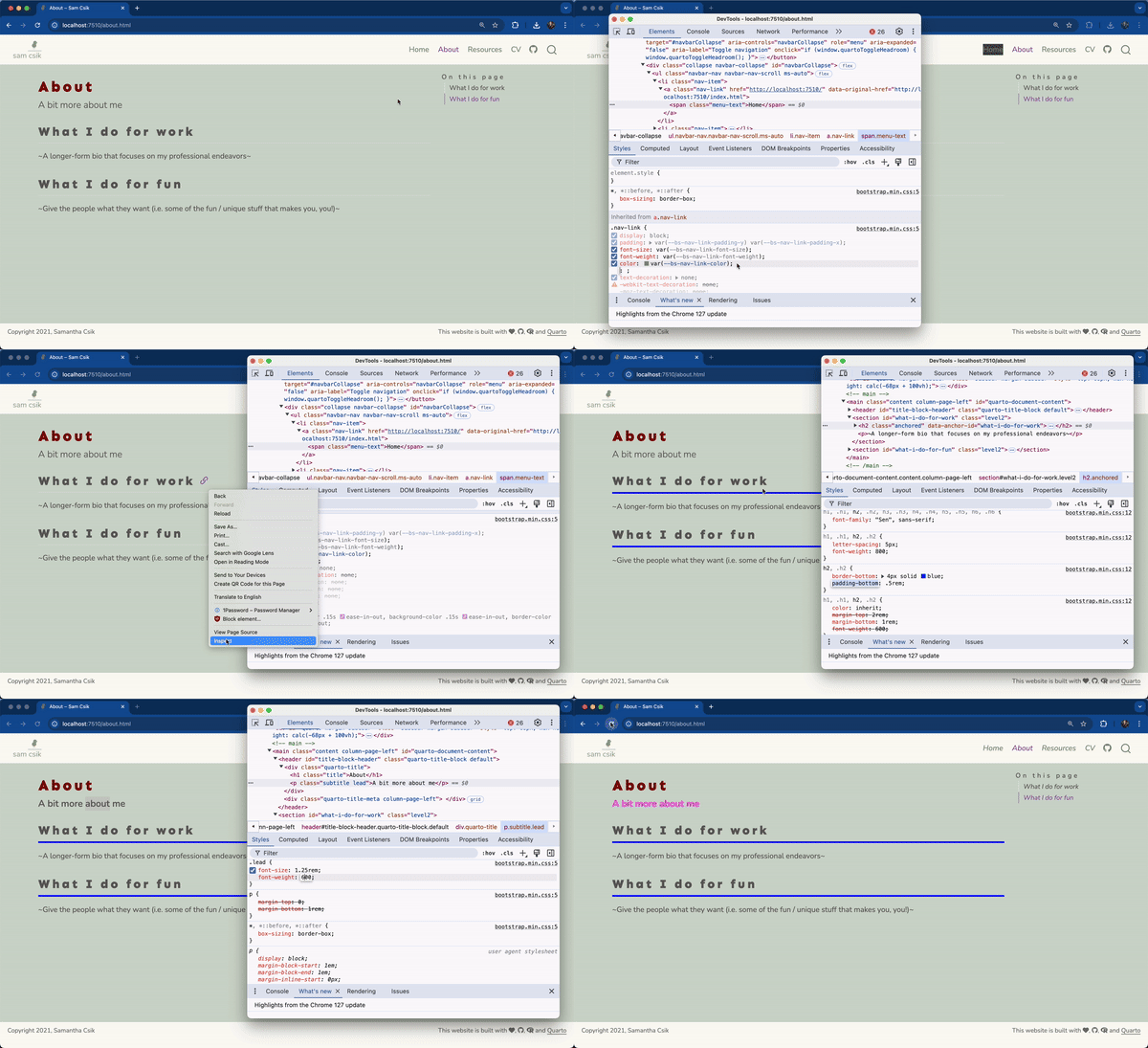
  • Right-click > Inspect to temporarily try CSS changes live in DevTools — changes are not saved, but it’s great for testing
  • Google (e.g. “CSS underline text”, “CSS rounded corners”)
  • W3Schools for interactive tutorials
  • Browse open-source Quarto sites on GitHub for inspiration and borrow CSS rules

Temporarily “edit” CSS in the DevTools pane to test styles before hard-coding them

Happy Styling!

This is a Quarto Presentation. To learn more, visit https://quarto.org.

If you see mistakes or want to suggest changes, please create an issue on the source repository.